Elements
Importing records from other sources
Elements has the capacity to import publication records from a number of other sources. Select which source you would like to import from to view the guide.
Import Google Scholar search results into Elements
Note: A Google account is required if you wish to import multiple publications.
-
Go to the Google Scholar website.
-
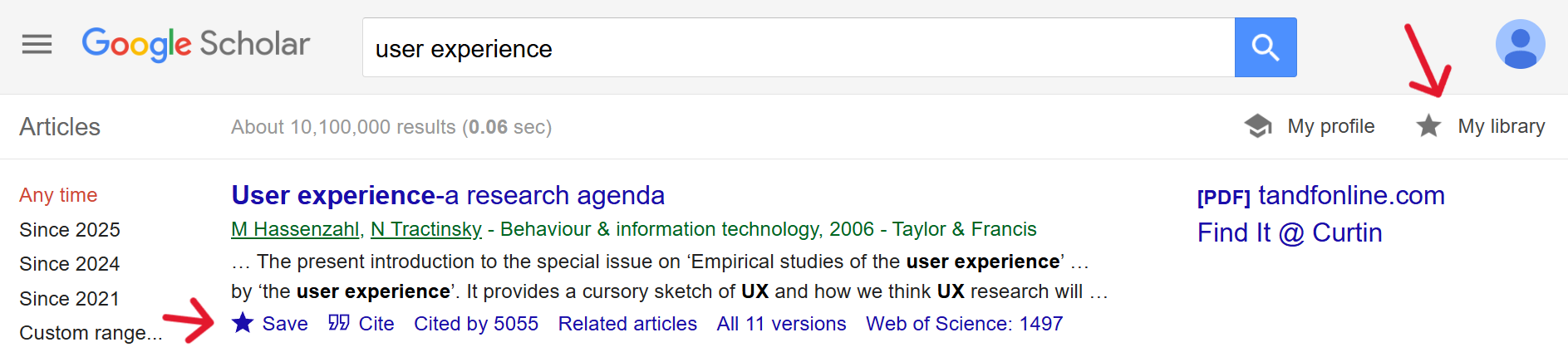
To import single publications: Perform your search to display the publication records of interest. On the publication you wish to import into Elements, click on the quotation marks (Cite) select ‘RefMan’ from the bottom of the pop up.
To import multiple publications: log in to Google Scholar and perform your search. Click on the star (Save) for each of the publications you wish to import. Click Done in the following pop up (or choose/create a label to assign to each one and then click Done). Click on Export All and select RefMan.
The file will be downloaded directly onto your computer or a share drive. If you downloaded multiple records they will all be in one RIS file.
-
In Elements, click on the hamburger menu in the top left corner. In the My Profile tab, under Tools, click on Import Publications.
-
Either click and drag the RIS file into the box or click on browse and find the file in your downloads. You can then check the file is correct under records to import and choose to either import it as a new record or skip it. If you have imported multiple records each one will be listed separately.
-
Click on Import. The imported publications will now appear in your Elements profile.
Importing from EBSCO Databases into Elements
-
Go the EBSCO Databases web page.
-
Perform your search.
-
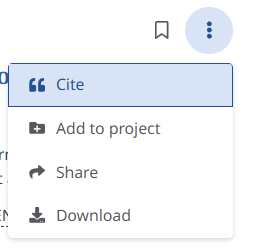
For individual records, click on the three to the right of each record and select Cite. For multiple records, tick the box to the left of each record you wish to import, scroll back to the top of the list and click on the quotation marks (Cite). Click on the Export citation tab and choose Export in RIS format
The file will be downloaded directly onto your computer or a share drive. If you downloaded multiple records they will all be in one RIS file.
-
In Elements, click on the hamburger menu in the top left corner. In the My Profile tab, under Tools, click on Import Publications.
-
Either click and drag the RIS file into the box or click on browse and find the file in your downloads. You can then check the file is correct under records to import and choose to either import it as a new record or skip it. If you have imported multiple records each one will be listed separately.
-
Click on Import. The imported publications will now appear in your Elements profile.
Importing Engineering Village search results into Elements
-
Go to the Engineering Village database.
-
Perform your search.
-
In the search results, check the boxes beside the records you wish to export (or check the box at the top of the list of publications to export all results).
-
Click on the download icon (to the right of the printer icon).

-
In the pop up, under Format, choose EndNote (RIS, Ref. manager) and click on Download record(s). The file will be downloaded directly onto your computer or a share drive. If you downloaded multiple records they will all be in one RIS file.
-
In Elements, click on the hamburger menu in the top left corner. In the My Profile tab, under Tools, click on Import Publications.
-
Either click and drag the RIS file into the box or click on browse and find the file in your downloads. You can then check the file is correct under records to import and choose to either import it as a new record or skip it. If you have imported multiple records each one will be listed separately.
-
Click on Import. The imported publications will now appear in your Elements profile.
Importing JSTOR search results into Elements
-
Go to the JSTOR database.
-
Perform your search.
-
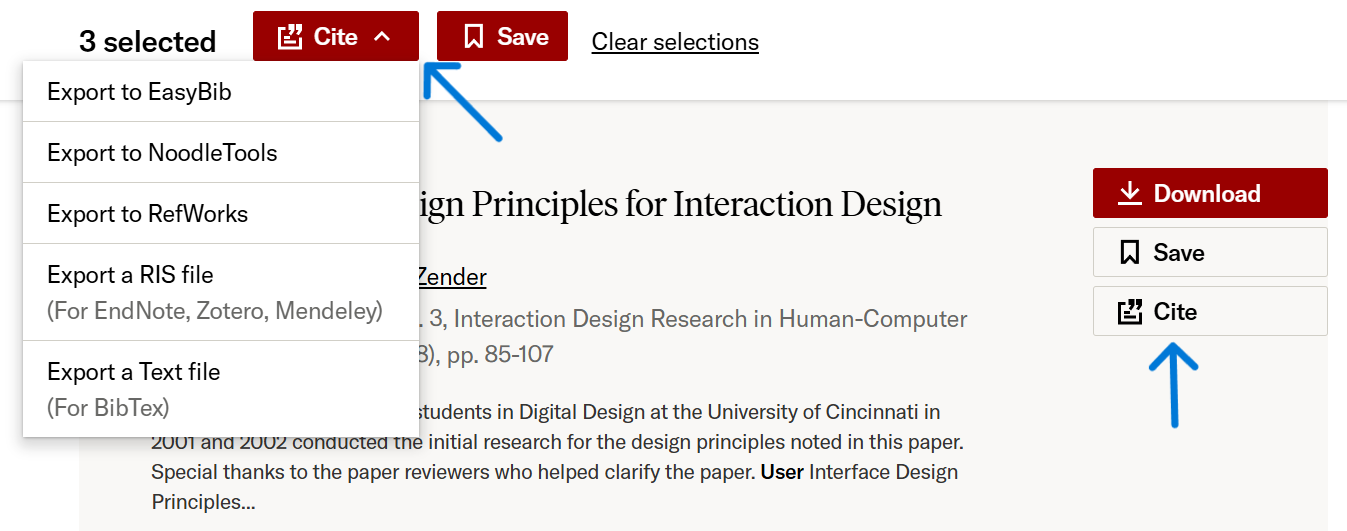
To import an individual record, click on Cite to the right of the record and choose Export a RIS file. To export multiple files, check the box next to each file you wish to export then click on Cite at the top of the search results page and choose Export a RIS file.
The file will be downloaded directly into your downloads folder on your computer or a share drive. If you downloaded multiple records they will all be in one RIS file.
-
In Elements, click on the hamburger menu in the top left corner. In the My Profile tab, under Tools, click on Import Publications.
-
Either click and drag the RIS file into the box or click on browse and find the file in your downloads. You can then check the file is correct under records to import and choose to either import it as a new record or skip it. If you have imported multiple records each one will be listed separately.
-
Click on Import. The imported publications will now appear in your Elements profile.
Import ProQuest search results into Elements
-
Go to the ProQuest database.
-
Perform your search.
-
To export a record, click on the quotation marks button (Cite) to the right of the title and under Export to a citation manager or file choose RIS.
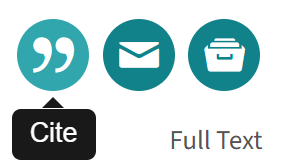
To export multiple records, check the box to the left of each title you wish to export and click on the quotation marks (Cite) at the top of the page. Under Export to a citation manager or file choose RIS.

The file will be downloaded directly into your downloads folder on your computer or a share drive. If you downloaded multiple records they will all be in one RIS file.
-
In Elements, click on the hamburger menu in the top left corner. In the My Profile tab, under Tools, click on Import Publications.
-
Either click and drag the RIS file into the box or click on Browse and find the file in your downloads. You can then check the file is correct under records to import and choose to either import it as a new record or skip it. If you have imported multiple records each one will be listed separately.
-
Click on Import. The imported publications will now appear in your Elements profile.
Importing Science Direct search results into Elements
-
Go the Science Direct database.
-
Perform your search.
-
To export an individual result, click on Export under the record and select Export citation to RIS.
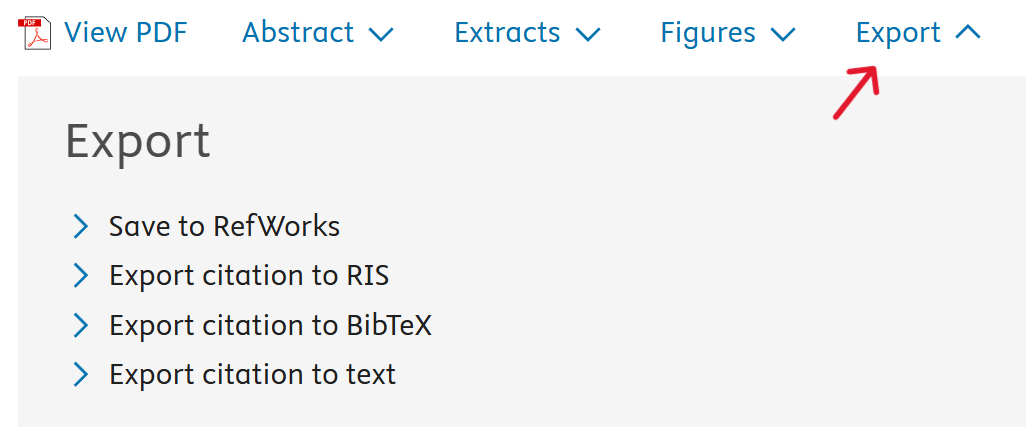
To export multiple records, check the boxes to the left of the records you wish to export. Then, from the top of the page, click Export and select Export citation to RIS from the pop up.

The file will be downloaded directly into your downloads folder on your computer or a share drive. If you downloaded multiple records they will all be in one RIS file.
-
In Elements, click on the hamburger menu in the top left corner. In the My Profile tab, under Tools, click on Import Publications.
-
Either click and drag the RIS file into the box or click on Browse and find the file in your downloads. You can then check the file is correct under records to import and choose to either import it as a new record or skip it. If you have imported multiple records each one will be listed separately.
-
Click on Import. The imported publications will now appear in your Elements profile.